Downloadable MLS AppUpdated 3 months ago
Downloadable MLS App: Access Mariners Learning System Courses on Mobile
Can I access Mariners Learning System courses on a mobile app?
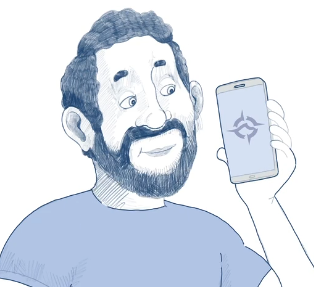
Yes. Mariners Learning System students can use the MLS eCampus app to access eligible online course content on Apple and Android devices.
The app gives you flexible access to your course materials so you can study on the go, download available lessons for offline use, and sync your progress when you reconnect to Wi-Fi or mobile data.
Important: Before you can access your course in the app, your course must first be activated through the Mariners Learning System website using a web browser.
If your course has not been activated in your online classroom first, it may not appear correctly in the mobile app.
What can I do in the MLS eCampus app?
The MLS eCampus app helps students study from almost anywhere.
| Feature | What it does |
|---|---|
| Mobile course access | View eligible Mariners Learning System course content on your phone or tablet. |
| Offline studying | Download available course materials while connected to the internet so you can study later without an active connection. |
| Progress syncing | Sync your course progress after you reconnect to the internet. |
| Answer review | Review your answers when you are back online so you can see what you have mastered and what needs more practice. |
How can I download the MLS eCampus app?
You can download the app from the Apple App Store or Google Play. Search for MLS eCampus.
| Device type | Where to download |
|---|---|
| iPhone and iPad | Download from the Apple App Store |
| Android phones and tablets | Download from Google Play |
How do I log in after downloading the MLS eCampus app?
Once the app is downloaded, you have two login options:
| Login option | Best for |
|---|---|
| Email and password | Students who know their Mariners Learning System account login credentials. |
| QR code | Students who want to quickly connect the app to their online classroom account. |
Option 1: Log in with your email and password
- Open the MLS eCampus app.
- Tap Log in.
- Enter the email address and password connected to your Mariners Learning System account.
- Tap Sign In.
Option 2: Log in by scanning a QR code
You can also log in by scanning the QR code from your online classroom profile.
- Open the MLS eCampus app.
- Tap Scan QR Code.
- On a computer or web browser, go to your Mariners Learning System classroom.
- Click your Profile icon in the upper-right corner.
- Click Profile.
- Find the Mobile app section on the right side of the page.
- Click View QR code.
- Use your phone’s camera or the app scanner to scan the QR code.
How does offline studying work?
You can use the MLS eCampus app to study offline, but the course material must be downloaded while you are connected to the internet first.
You can download previously completed work and current available work. You cannot download future work before it becomes available in your course.
What can I download for offline use?
| Available for offline download | Details |
|---|---|
| Previously completed work | Lessons, quizzes, or other study materials you have already completed can be downloaded while connected to the internet and reviewed offline later. |
| Current work | Course content currently available to you can be downloaded while connected to the internet and used offline. |
What cannot be downloaded for offline use?
| Not available for offline download | Details |
|---|---|
| Future work | Course content that has not yet become available in your course cannot be downloaded in advance. |
Before going offline
Before going offline, open the MLS eCampus app while connected to Wi-Fi or mobile data. Download the course materials you want to study before you lose internet access.
Your progress can sync after you reconnect to the internet.
Troubleshooting the MLS eCampus app
| Issue | What to check |
|---|---|
| Course does not appear in the app | Confirm that your course was activated in your Mariners Learning System classroom using a web browser first. |
| Login does not work | Make sure you are using the same email and password connected to your Mariners Learning System account. |
| QR code does not scan | Make sure the QR code is visible on your screen and your phone camera has permission to scan. |
| Offline content is missing | Confirm that you downloaded the available course material while connected to the internet. Previously completed work and current available work can be downloaded. Future course work cannot be downloaded in advance. |
| Progress is not updated | Reconnect to Wi-Fi or mobile data so the app can sync your latest activity. |
Frequently asked questions
Does Mariners Learning System have an app?
Yes. Mariners Learning System offers the MLS eCampus app as a companion app for eligible online courses.
Do I need to activate my course before using the app?
Yes. Your course must be activated through the Mariners Learning System website in a web browser before it can be accessed in the app.
Can I study offline with the MLS app?
Yes. You can study offline after downloading available course material while connected to the internet.
Can I download future lessons before they are available?
No. Future course work cannot be downloaded before it becomes available in your course.
What should I search for in the app store?
Search for MLS eCampus in the Apple App Store or Google Play.